
Reviewing LocalCite Articles: Approve, Request Changes, or Use Autopilot
Learn how the LocalCite review queue works: when to approve, how to request changes by text or voice note, and whether Autopilot is right for you.
Every LocalCite article goes through you before it reaches your website. This guide covers how the review queue works, how to ask for changes in a way that gets results, and when Autopilot makes sense.
Where your articles show up
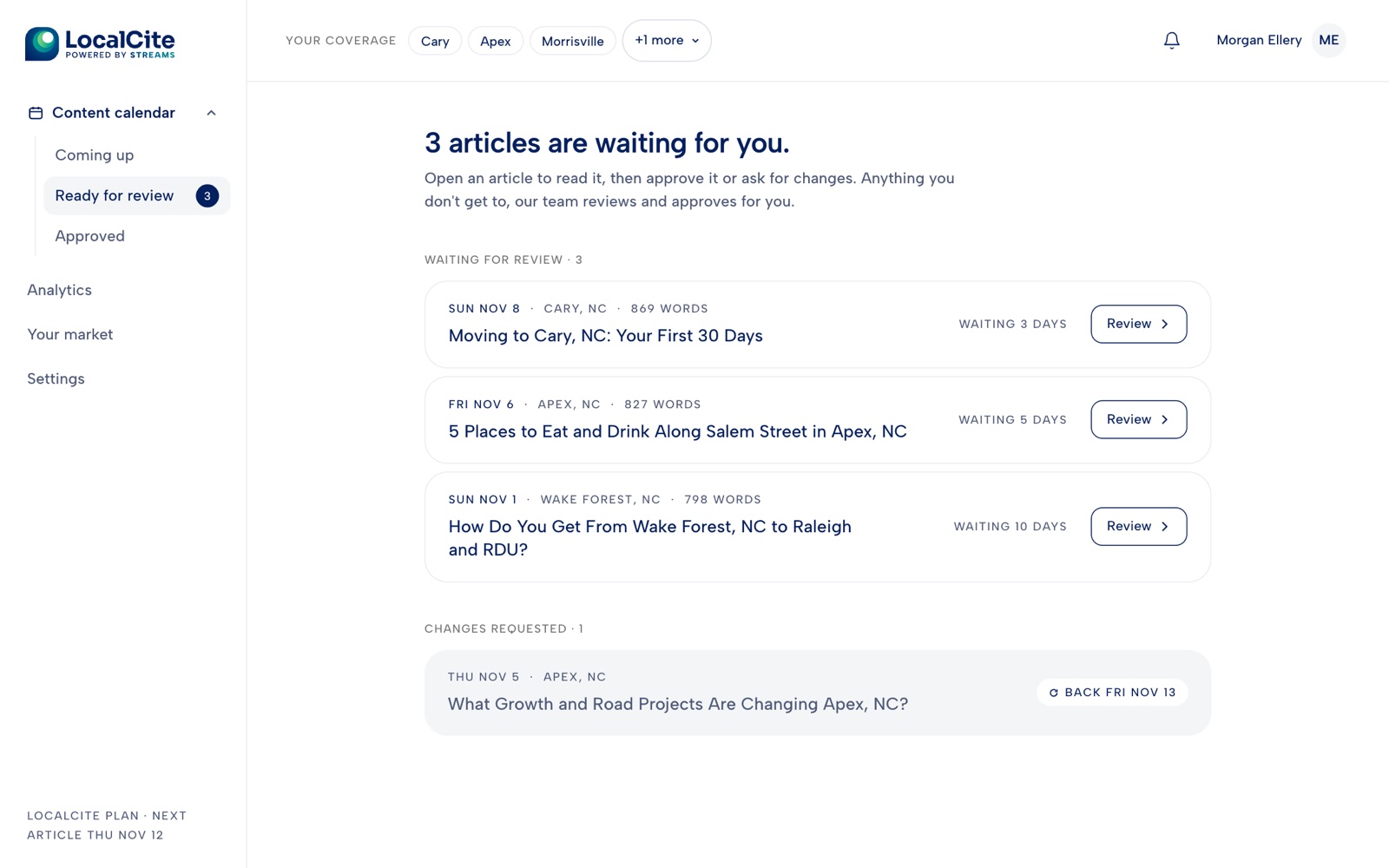
When an article is finished, it lands in Review in your portal. You'll also get an email (unless you turned "Ready for review" emails off), and the bell in the portal header shows a notification. The Review link in the sidebar shows a count of articles waiting.
Open the queue and you'll see articles that are ready, newest first, with how long each has been waiting. Articles you've asked changes on appear below them while they're being revised.
What you can do with an article
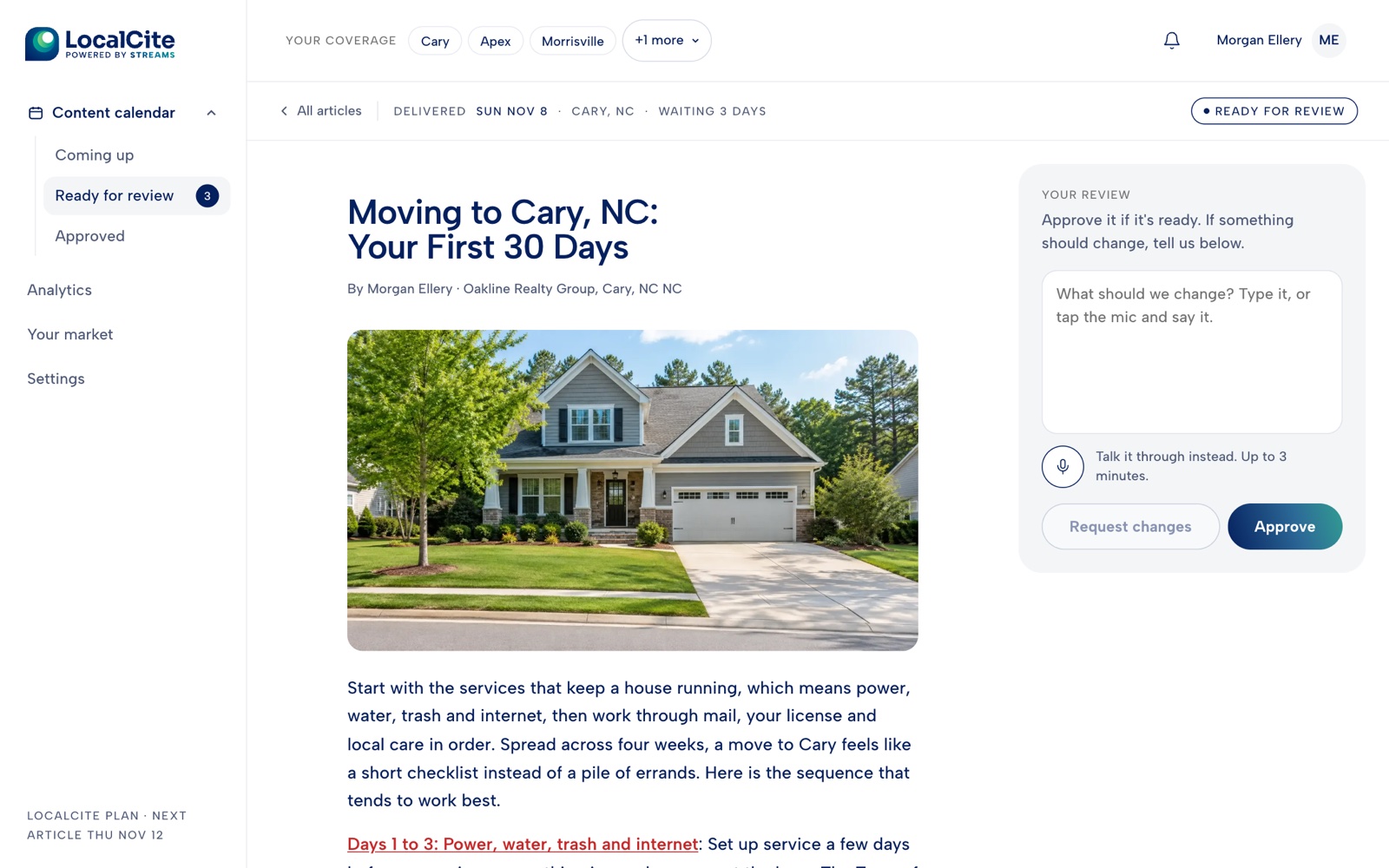
You have two options on every article ready for review.
Approve
Approving moves the article to Approved. What happens next depends on how you publish:
WordPress or webhook: the article is sent to your site automatically. You'll see "Posting," then Live or Delivered.
Copy and download: you copy the article from Approved into your own site.
Our guide to getting articles onto your site covers each path.
Request changes
You can't edit the text yourself in the portal, and you can't reject an article. Instead, you tell us what to change.
Write a note of up to 5,000 characters, or tap the microphone and record a voice note of up to three minutes. It's turned into text you can edit before sending, which is the fastest way to give detailed feedback while you're out showing homes.
When you send it, the article moves to Changes requested. We aim to return a revision within 3 days, and the portal tells you if it's taking longer than planned. The revised version comes back as v2, then v3, and so on. There's no limit on rounds of changes.
How to write feedback that works
Specific notes get better revisions than general ones.
"Make it sound more like me": "I'm more casual and short-sentenced. Cut the long intro and open with the coffee shop."
"Not quite right": "The second section talks about commuting, but my clients care about walkability. Swap that."
"Add more detail": "Mention that I specialize in first-time buyers in the closing."
Also check for things only you would know: that a place named is still open, that a fact about the area is current, and that nothing contradicts how you actually work.
Autopilot: should you turn it on?
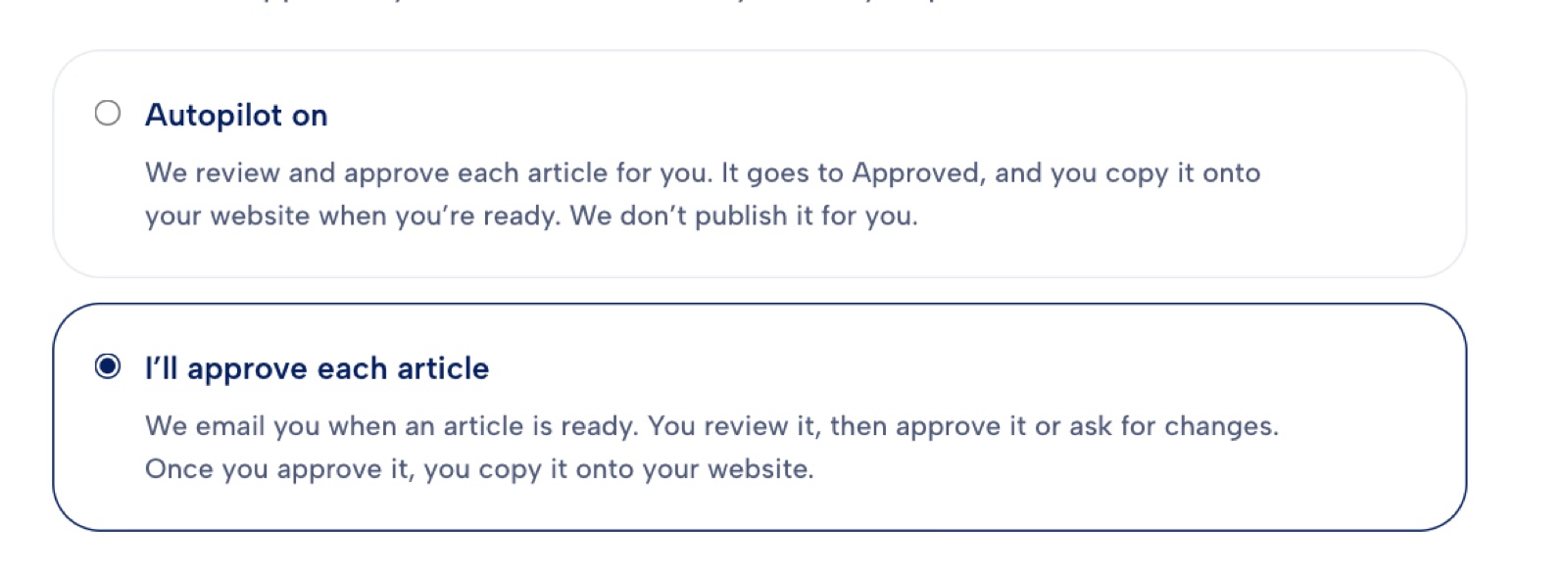
Autopilot is off by default. You choose between "I'll approve each article" and "Autopilot on" in Getting started, or any time in Settings under Publishing.
With Autopilot on, our team approves articles for you, and the article moves on to your site. The exact behavior follows your publishing choice:
WordPress, a webhook, or BoldTrail: Autopilot approves and we publish to your site.
None of these: Autopilot only approves. You still copy the article into your site.
Autopilot is a good fit if
You've read several articles and you're consistently approving them without changes.
Your Voice settings feel right.
Your publishing is fully connected, so articles can go live without you.
Stay on manual approval if
You're brand new and haven't seen how articles read yet.
You want to check local facts before anything goes public.
You're still adjusting your Voice settings.
A sensible path: approve manually for your first few articles, and request changes until the voice feels right. Then switch Autopilot on and keep spot-checking what goes live.
You can switch back at any time. Even with Autopilot on, you can still open an article waiting in Review, approve it, or ask for changes.
What happens if you don't review
Nothing is approved automatically by the system. If an article sits in Review for about six days with Autopilot off, our team gets a reminder and can approve it on your behalf, and you'll see it marked "Approved for you." If you'd rather always see articles first, check your queue weekly. It's a five-minute habit.
Control your notifications
In Settings, you can turn off the "Ready for review" emails, the "Approved for you" emails, and others. The bell in the portal still shows each delivery, so you'll never miss one.
Frequently asked questions
Can I edit an article myself? Not in the portal. Use Request changes and tell us what to change, or edit after you copy it into your own site.
How long do revisions take? We aim for 3 days from your request. The portal flags it if one runs late.
Can I reject an article outright? No. You can request changes, with a note explaining what's wrong, and a revised version is sent back.
Will Autopilot publish something I haven't seen? With Autopilot on, our team approves articles for you, and the article is sent to your site if publishing is connected. You can still review any article waiting in your queue. If you want to see everything first, leave Autopilot off.
Can I change my mind about Autopilot? Yes, any time in Settings under Publishing.