
How to Publish LocalCite Articles to Your Website (WordPress, Webhook, or Copy and Paste)
Connect WordPress, send articles through Zapier, Make, or n8n, or copy and paste. A step-by-step guide to getting every LocalCite article live.
An approved article is only useful once it's on your site. LocalCite gives you three ways to get it there. This guide explains each, who it fits, and how to set it up.
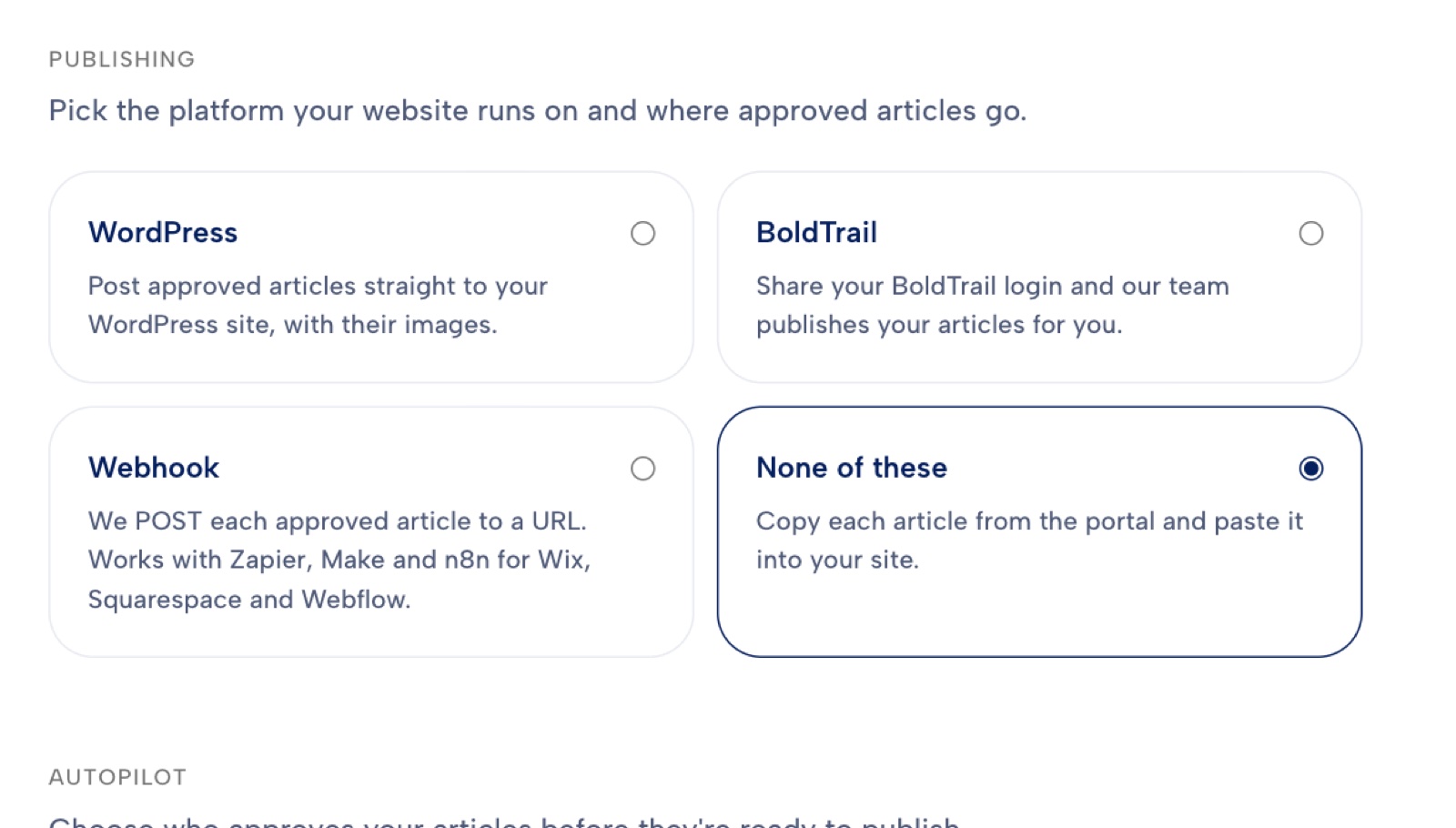
You choose one destination in Settings under Publishing, or in the first step of Getting started. You can change it whenever you like.
Which option should you choose?
If your site is self-hosted WordPress, use WordPress (automatic).
If your site is on another platform that works with Zapier, Make, or n8n, use Webhook (automatic).
If your site is on BoldTrail, turn on Autopilot and our team publishes for you.
If it's anything else, or you just want to start, use None of these (copy and paste).
Option 1: WordPress (automatic)
Once connected, every approved article is posted to your site on its own.
What you need:
Your site address (we always use https)
Your WordPress username
An Application Password, which you create in your WordPress profile. It's separate from your normal password and can be revoked at any time.
Before you start, know that:
Free WordPress.com sites are not supported.
The user needs permission to publish posts and upload files.
Setup:
In Settings, choose WordPress under Publishing.
Enter your site address, username, and Application Password.
Click Test connection. LocalCite confirms it's a WordPress site, that Application Passwords work, and that your user can publish.
Choose whether new articles go up as Live posts or Drafts, and optionally a category.
What gets posted: the title, body, excerpt, and featured image. Images are copied into your WordPress media library. New posts also get a slug and a tag for the city.
What you do yourself: the SEO title, meta description, and FAQ are not sent, because WordPress only accepts them through plugins like Yoast or Rank Math. Open the article in Approved and use the copy buttons for each field. It takes under a minute and is worth doing for ranking.
If you run into trouble, Disconnect forgets your password and sets publishing back to "None of these."
Option 2: Webhook (automatic)
A webhook sends each approved article to an address you choose, as structured data. It's the best fit for platforms we don't connect to directly, using a tool like Zapier, Make, or n8n to put the article where you need it.
You provide a URL. LocalCite sends a signed message with the article's title, body as HTML, summary, SEO title, meta description, FAQ, featured image, and more. Signing lets your receiving tool confirm the message really came from LocalCite.
Setup in short:
Choose Webhook in Settings and paste your URL.
LocalCite generates a secret, shown once. Save it.
Click Send test payload to check the connection.
Build the rest in your automation tool.
Our webhook documentation has the full payload and a Zapier walkthrough.
What to expect: a successful send shows as Delivered, not Live, because your site doesn't report back a link. Paste the live link on the article to mark it Live. If your endpoint is down, LocalCite retries twice more before showing "Not posted."
Webhooks aren't offered for BoldTrail, which can't receive posts from Zapier, Make, or n8n.
Option 3: Copy and paste ("None of these")
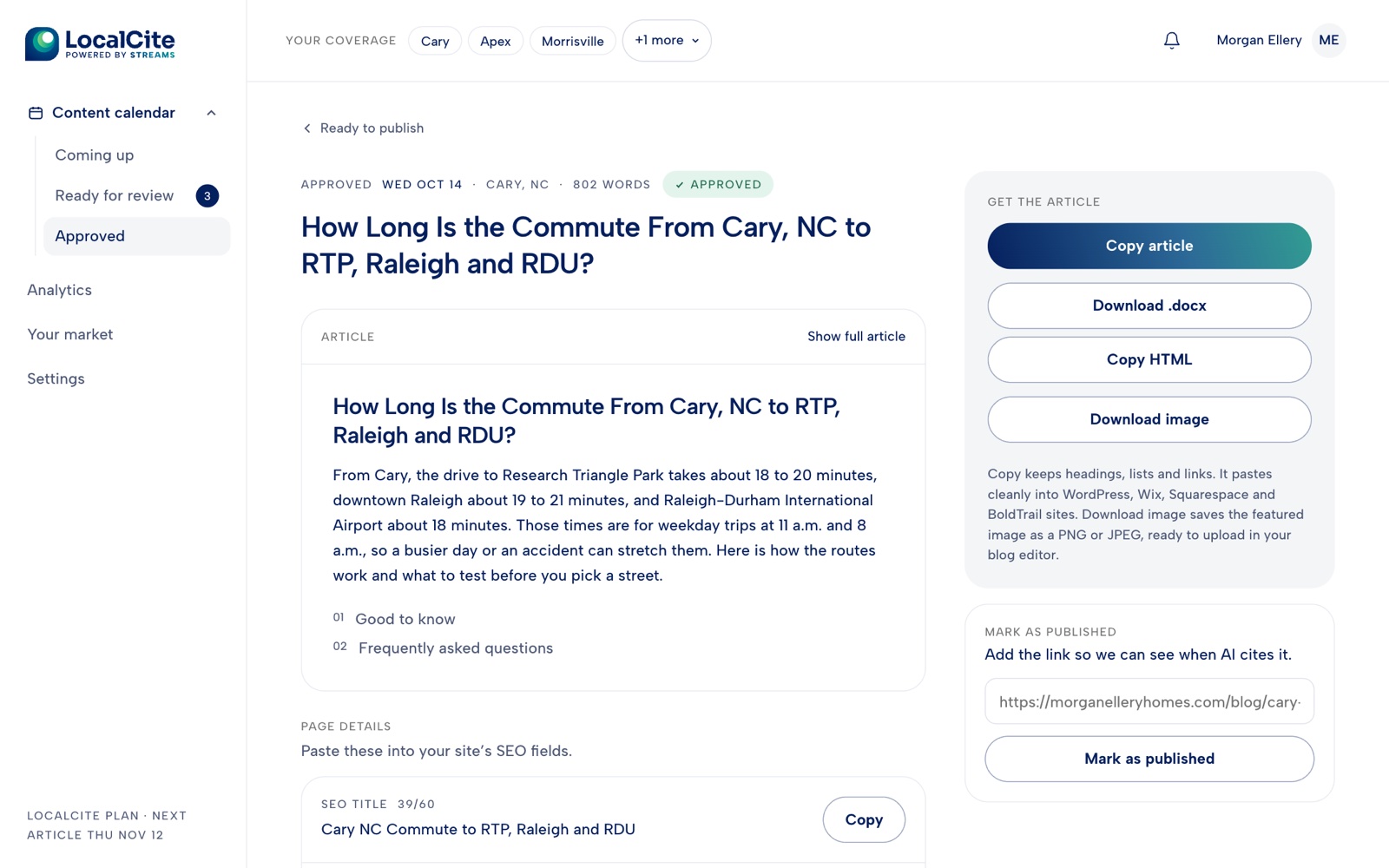
The simplest option, and a fine place to start. Nothing is sent automatically. When you approve an article, go to Approved and use the copy buttons for:
The article body
The HTML version
The SEO fields
The FAQ schema
If your article has a featured image, use Download image to save it for your blog editor.
BoldTrail
If your site runs on BoldTrail, turn on Autopilot. Our team approves and publishes your articles for you, and you'll normally get a "live on your site" email when each one is up.
Check your articles are live
On the Approved page, tabs show Ready to publish and Live on your site. While an article is posting, the page refreshes every few seconds. If a send fails, you'll see "Not posted" with the reason in plain language, a Try again button, and a link to Settings. LocalCite also alerts our team, so failures don't sit unnoticed.
Once an article is live, paste its link on the article. Whichever way you publish, that marks it Live and keeps your list accurate.
Publishing tips that help articles rank
Fill in the SEO title and meta description for every article, even if you publish automatically.
Keep the slug. It's short and includes the city.
Link to your new articles from your own pages, like your neighborhood guides and homepage.
Add the FAQ schema if your site supports structured data, so your answers can appear in search and AI results.
Troubleshooting
"Not posted" on WordPress. Check the reason shown, then Test connection in Settings. The most common causes are a revoked Application Password or a user without publish permission.
Webhook says Delivered but nothing appears. Delivered means your endpoint accepted it. Check the next step in your Zap or scenario. Open the article's Delivery details to see the latest attempts.
I changed my destination. Try again uses your current setting.
Frequently asked questions
Can I use more than one destination at a time? No. You choose one, and you can switch any time.
Will WordPress publish articles live or as drafts? Whichever you choose. Pick Draft if you want to look at each article in WordPress first.
What if my plan ends? Automatic publishing stops when a plan ends. You can still read your articles in the portal and copy them.